Pros
- MagSpeed wheel and thumb roller still class-leading for documents and timelines
- Silicone haptic panel and refreshed CMF feel more premium and repair-minded
- 8,000 DPI Darkfield tracks on glass; multi-device Easy Switch unchanged but reliable
- USB-C Bolt receiver on standard editions; ~70-day battery in real desks
- Quiet primary clicks and sculpted right-hand shell suit 8-hour knowledge work
Cons
- 150 g weight and 125 Hz polling limit travel and competitive gaming appeal
- Haptic integrations are app-dependent and still maturing on macOS
- Actions Ring now reaches older MX models via Options+ — less reason to upgrade from 3S
- Premium MSRP (~$120) buys refinement, not a sensor or connectivity revolution
- Right-hand-only shape; lefties need MX Vertical or ambidextrous alternatives
The Logitech MX Master 4 is Logitech’s 2025 flagship productivity mouse — the seventh generation of a line that basically invented “serious wireless mouse” for architects, video editors, and spreadsheet survivors. This Logitech MX Master 4 review (November 2026) explains what actually changed versus the MX Master 3S: the Haptic Sense Panel, Actions Ring overlay shortcuts, refreshed materials, and whether those additions justify another $120 when your 3S still scrolls like a dream.
If you typed logitech mx master 4 review because YouTube showed a thumb pad that buzzes like a phone, you are looking at the correct product — not a gaming G502 lookalike, not the MX Anywhere travel line, and not third-party “Master” clones from random Amazon brands. Logitech makes the real thing; everything else is ergonomics theater.
Productivity desk setup — photo via Wikimedia Commons
Quick Verdict (For Skimmers)
| Field | Detail |
|---|---|
| Maker | Logitech (MX productivity lineup) |
| Launch | September–October 2025, widely stocked in 2026 |
| MSRP | $119.99 / £119.99 / €129.99 (street often matches) |
| Weight | 150 g (about 9 g heavier than MX Master 3S) |
| Sensor | Darkfield high precision, 200–8,000 DPI, glass tracking |
| Polling | 125 Hz (unchanged from 3S — not a gaming mouse) |
| Connectivity | Bluetooth 5.1 BLE, Logi Bolt 2.4 GHz (USB-C dongle on most SKUs) |
| Battery | Up to ~70 hours active use; USB-C charge; quick top-up |
| Standout hardware | Haptic Sense Panel + MagSpeed electromagnetic scroll |
| Software | Logi Options+ (profiles, Flow, Smart Actions, Actions Ring) |
| NexReview score | 8.6/10 |
Buy it if you are coming from a basic office mouse, a cracked MX Master 2S, or you specifically want tactile feedback during Actions Ring and supported creative apps. Skip it if you own a healthy MX Master 3S and only wanted Actions Ring — try updated Options+ first. Also skip if you need light weight, ambidextrous shape, or 1,000 Hz polling for shooters.
What Is the MX Master 4?
Logitech positions the MX Master 4 as a remaster of its icon: same right-handed palm-grip silhouette, same horizontal thumb scroll wheel for Excel and Premiere timelines, same Easy Switch button to hop between three paired devices. The story is refinement plus haptics, not a clean-sheet reinvention.
Logitech announced the mouse globally in late September 2025 with colors including Graphite, Pale Grey, region-specific Black / Graphite Charcoal, and for Mac finishes (White Silver, Space Black). Business SKUs target fleet buyers who standardize on Bolt receivers. All of that matters when you compare listings: a “Mac” box may omit the Bolt dongle while the standard Graphite unit includes USB-C Bolt — check the exact model number before checkout.
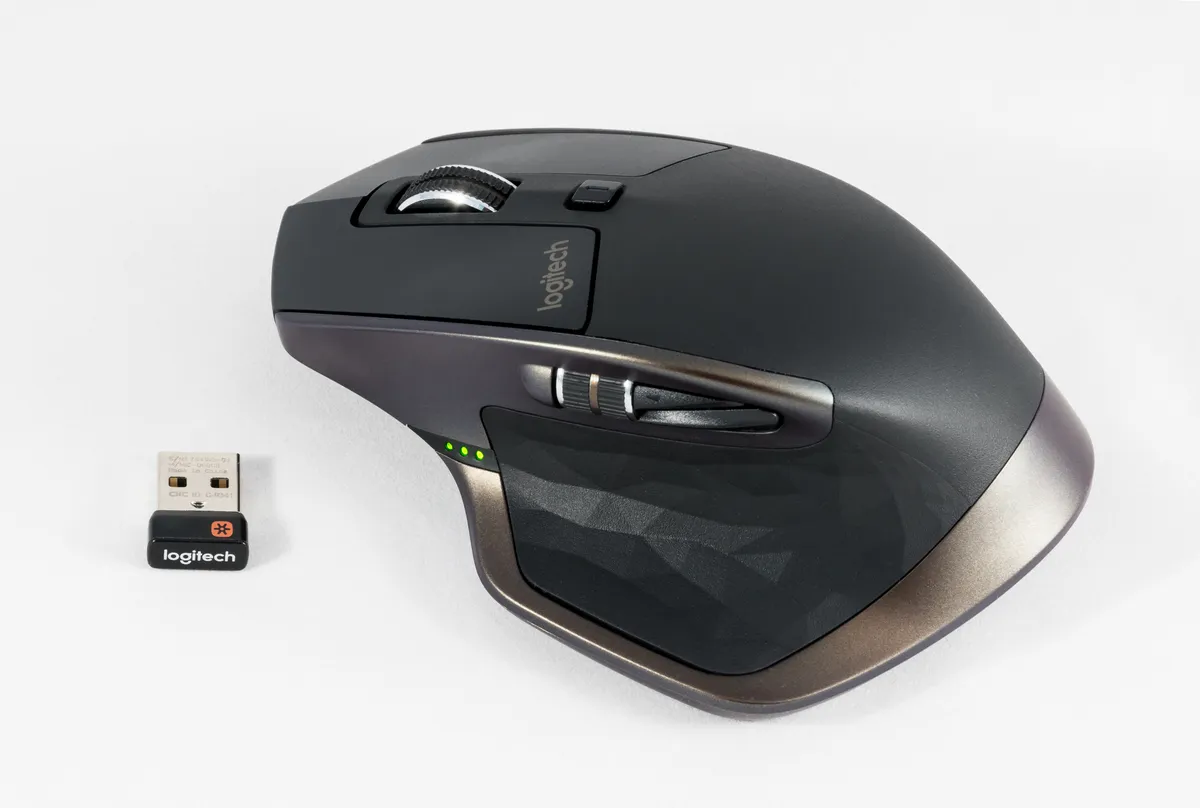
Dimensions land around 128.2 × 88.4 × 50.8 mm with an eight-button layout (primary pair, mode-shift behind the wheel, thumb cluster, gesture-capable thumb rest, and the new haptic surface). For desk pairing context, the mouse complements ultrabooks like the MacBook Air M4 and tall mechanical boards such as the Keychron Q1 HE without dominating the mat — though at 150 g it is firmly a desktop anchor, not a pouch mouse.
Logitech MX Master 4 Review — What Changed From the 3S?
Understanding the upgrade path is the heart of any honest Logitech MX Master 4 review. Here is what moved, what stayed, and what is mostly marketing fog.
New: Haptic Sense Panel
The thumb-side Haptic Sense Panel is silicone with a ripple texture. Press or hold it (depending on your Options+ mapping) and the mouse can:
- Open the Actions Ring radial shortcut menu at the cursor
- Deliver tactile bumps when your pointer highlights a ring icon — mimicking physical buttons
- Trigger partner-app feedback where Logitech and vendors implemented plugins (Adobe smart guides, alignment cues in office tools, notification-style pulses instead of banner distractions)
The motor and firmware add weight and draw from a 650 mAh battery (up from 500 mAh on the 3S). Runtime still lands near two months of typical office use because Logitech tuned power aggressively — but the capacity bump exists largely to feed haptics, not to double battery life.
Reality check from long-term desks: haptics shine when you commit to a small set of daily shortcuts and supported apps. If you live in browser tabs and Slack, you may only feel startup/charge buzzes. Windows 11’s broader Advanced Haptics roadmap (native OS integration rolled through 2026 updates) improves the story on PC more than on macOS, where pulses are still app-specific.
New-ish: Actions Ring (But Not 4-Exclusive Anymore)
Actions Ring is Logitech’s on-screen command wheel — up to eight shortcuts orbiting the cursor, with per-app profiles in Options+. Logitech markets up to 33% time saved on repetitive menu diving; your mileage depends on whether you are a menu clicker or already a keyboard shortcut addict.
Critical 2026 detail: Actions Ring expanded to MX Master 3S (including some Bluetooth-only editions) via Logi Options+ updates. That blunts the “must buy 4 for Ring” argument. The 4 still pairs Ring with haptic confirmation — the differentiator is feel, not exclusivity.
Refined: Materials, Paintless Plastics, Repair Posture
Logitech’s CMF team reduced painted surfaces in favor of microtextured post-consumer plastics that resist stains and shine differently under desk lamps. Silicone inserts sit where palms squeeze hardest — durability and comfort, not just aesthetics.
The company also leans into repair-friendly design narratives (screw-accessible shells, spare parts story) aligning with EU repair pressure. For buyers keeping peripherals a decade, that matters as much as DPI charts.
Unchanged Core: MagSpeed, Darkfield, Quiet Clicks, Flow
MagSpeed electromagnetic scrolling remains the killer feature: ratchet precision for line edits, freewheel inertia for 1,000-line flick through logs. The machined steel wheel is quiet enough for open offices — same family as 3S Quiet Clicks on primaries.
Darkfield 8K tracking still laughs at glass desks and glossy conference tables. Flow still lets you move the cursor across two computers and copy/paste between them like sorcery — excellent with a Framework Laptop 13 on the left and a Mac mini on the right.
What did not change? 125 Hz polling and 8,000 DPI ceiling — fine for 4K spreadsheets, underwhelming if you expected Logitech to chase Razer Pro Click V2’s 1 kHz office mouse spec.
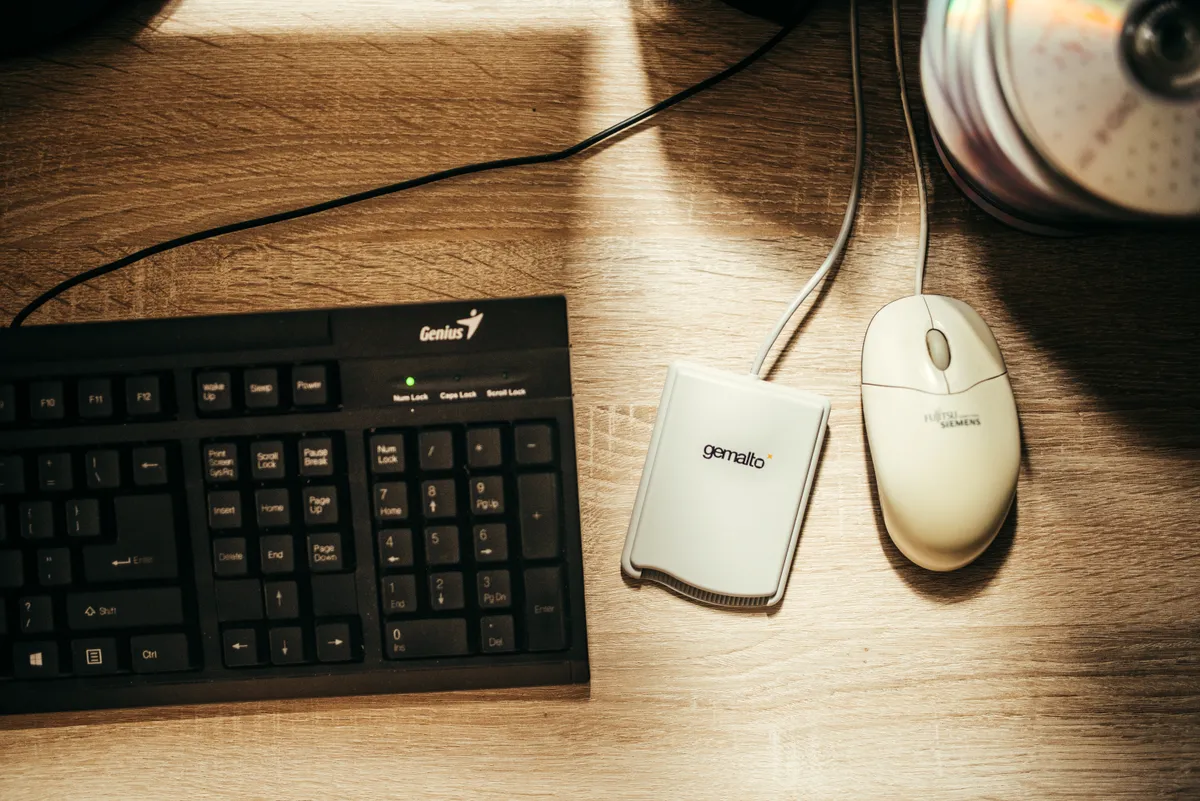
Office mouse and keyboard workflow — Wikimedia Commons
Ergonomics and Day-Long Comfort
The MX Master 4 keeps the asymmetric right-hand hump that made the series famous. Your palm nests on the crest; the pinky lip prevents drag on the mat; the thumb crater hosts the horizontal wheel and haptic zone.
Compared with flat ambidextrous mice, the Master trades versatility for ulnar deviation relief — especially when paired with a negative-tilt keyboard tray. The extra nine grams versus 3S is noticeable if you arm-curl the mouse for micro-adjustments, but forgotten during scroll-heavy research sessions.
Travelers should note: this is not an MX Anywhere compact. It fills laptop bags and tempts TSA bin spills. Keep it on the desk dock; buy a smaller mouse for planes.
Scrolling, Tracking, and Sensor Performance
Two wheels define Master productivity:
| Control | Best for | Feel |
|---|---|---|
| Vertical MagSpeed | Long PDFs, code review, browser feeds | Mode-shift or auto inertia; whisper quiet |
| Horizontal thumb wheel | Excel, timeline NLEs, Figma canvas | Stepped precision; muscle-memory asset |
The 8,000 DPI range is overkill for office work but saves sanity on ultrawide and stacked 4K monitors without arm gymnastics. Logitech claims 5× precision versus basic office mice — less marketing than lived experience when jumping from a $15 OEM puck.
Limitations are intentional product boundaries:
- 125 Hz polling introduces micro-latency versus gaming mice — irrelevant in Word, slightly felt in fast RTS if you refuse a second mouse.
- 150 g mass slows FPS flicks; slow RPGs or Stardew-style titles work, but dedicated gamers should keep a lightweight RGB mouse on the pad.
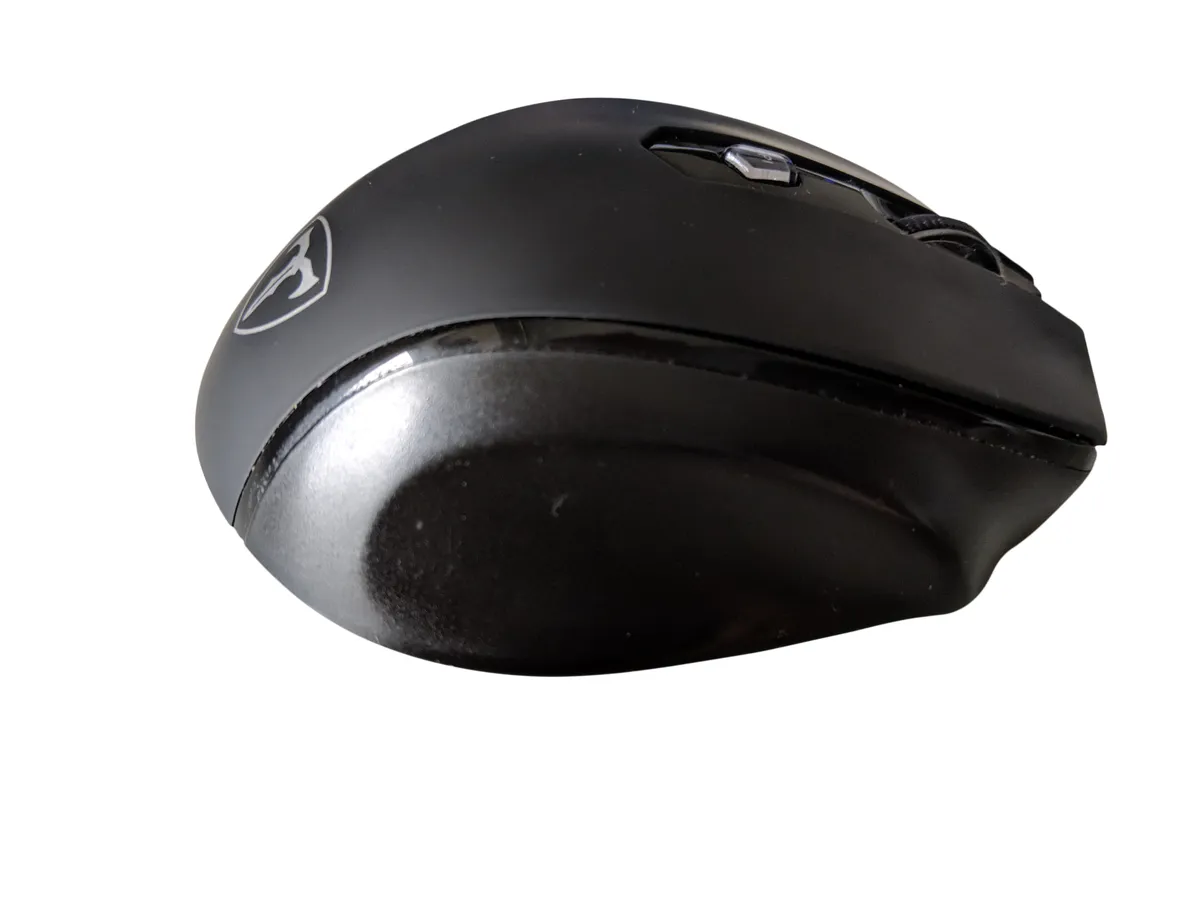
Wireless mouse detail on desk — Wikimedia Commons
Software: Logi Options+, Actions Ring, and Smart Actions
You do not buy an MX Master mouse; you buy Options+ dependency. Install it on Windows or macOS to unlock:
- Per-app button maps (Photoshop brush sizes vs. IDE breakpoints)
- Smart Actions macros chaining apps (open Zoom, mute, tile window)
- Actions Ring layouts per title
- Flow cross-machine clipboard
- Firmware updates for haptics and Bolt pairing
Options+ matured since the 3S launch but still frustrates IT-locked machines and occasional profile sync hiccups. Budget ten minutes after major OS upgrades to verify bindings — especially if you dock a MacBook Air M4 by day and game on Windows by night.
Configuring Actions Ring Without Hating It
Start narrow:
- Pick one app you menu-spam daily (Figma, Excel, Premiere).
- Assign four ring slots, not eight — cognitive load matters.
- Map the haptic panel to Ring only after you prove keyboard shortcuts are insufficient.
- Compare against Raycast or OS-native launchers before declaring victory.
If Ring does not stick in two weeks, you are not unmotivated — you might simply be a keyboard-first developer. Pair the mouse with Cursor IDE multi-monitor layouts via Easy Switch instead of forcing buzzes.
Connectivity, Receivers, and Multi-Device Setup
Pairing paths:
- Logi Bolt USB-C receiver — stable 2.4 GHz for desktops; check your PC has USB-C or use an A adapter thoughtfully.
- Bluetooth BLE 5.1 — up to ~10 m rated; fine for laptops and tablets; slightly higher wake latency.
- Easy Switch — three device slots; button cycles hosts without re-pairing dance.
Read SKU labels: MX Master 4 for Mac may ship without a dongle; standard Graphite often includes Bolt. Mixing receivers from MX generations usually works, but verify Options+ device list after fleet upgrades.
Battery Life and Charging
Logitech rates up to 70 hours of active use. Real desks see weeks to ~two months between USB-C charges depending on haptic intensity, RGB-free sanity, and whether Flow keeps radios busy.
A one-minute quick charge yielding hours of emergency use remains — great when a standup starts and the LED blinks red. The mouse also vibrates on plug-in and power-on; cute the first day, disable in Options+ if sensory clutter annoys you.
MX Master 4 vs MX Master 3S — Upgrade Math
| Factor | MX Master 4 | MX Master 3S |
|---|---|---|
| Street price | ~$120 | Often ~$90–100 on sale |
| Weight | 150 g | ~141 g |
| Haptics | Yes | No |
| Actions Ring | Yes (+ haptic cues) | Yes via updated Options+ |
| DPI / polling | 8K / 125 Hz | 8K / 125 Hz |
| Bolt USB-C dongle | Common on standard SKU | USB-A or BT-only variants |
| Best buyer | New-to-Master, 2S or older, haptic believers | Already owns 3S, happy scroll wheel |
NexReview take: 3S owners should not feel FOMO unless haptics solve a tangible problem (accessibility, eyes-off shortcuts, creative-app alignment buzz). First-time flagship buyers should skip straight to the 4 if prices are within $30 — materials and dongle modernization help.
Who Should Buy — and Who Should Skip
Perfect For
- Knowledge workers upgrading from MX Master 2S or earlier generations
- Creators who will actually configure Adobe-aligned haptic plugins
- Multi-monitor Mac and Windows hybrids using Flow
- Buyers who want quiet clicks and best-in-class scrolling in 2026
- Desk setups centered on premium ultrabooks and mechanical keyboards
Not Ideal For
- Current MX Master 3S owners chasing only Actions Ring
- Left-handed users (consider Logitech MX Vertical or symmetrical mice)
- Competitive gamers needing sub-80 g and 1 kHz+ polling
- Minimalists refusing background apps — basic functions work without Options+, flagship features do not
- Frequent travelers wanting pocketable pointers
Pros and Cons (Summary Table)
| Pros | Cons |
|---|---|
| MagSpeed + thumb wheel still best for document work | Heavy for travel and FPS |
| Haptics add novelty and accessibility pathways | App support uneven outside partner suite |
| Premium materials, stain-resistant shell | 125 Hz feels dated versus Pro office competitors |
| Glass-friendly Darkfield sensor | Right-hand-only ergonomics |
| Strong battery despite haptic motor | Upgrade from 3S is optional, not essential |
Desk Setup Tips (Practical)
- Mat size: Use at least a medium cloth mat so the tall shell does not catch on desk edges.
- Receiver placement: Keep Bolt close and line-of-sight; metal cases interfere more than Bluetooth myth suggests.
- DPI stages: Set 1600–2400 for 27–32" panels; bump one slot for ultrawide.
- Haptics intensity: Start low; thumb fatigue is real on vibration-heavy mappings.
- Backup mouse: For gaming nights, switch to a lightweight mouse — your wrists will thank you.
- Clean silicone: Wipe haptic panel monthly; oils dull grip texture.
Mobile-Friendly Buying Checklist
Reading this Logitech MX Master 4 review on a phone before Prime Day?
- Confirm model number for dongle inclusion (910-007558 Graphite vs Mac SKUs)
- Verify Options+ supports your OS version
- If you own 3S, update software before spending $120
- Compare warranty and return window — 30-day trials are common direct from Logitech
- Budget a USB-C hub if your laptop port layout fights dongle placement
FAQ — Logitech MX Master 4 Review
Is the Logitech MX Master 4 a real product in 2026?
Yes. Logitech launched it in late 2025; it is the current MX Master flagship sold on logitech.com and major retailers — not a rumor SKU.
How much does the MX Master 4 cost?
MSRP is $119.99 in the US (similar in GBP/EUR). India and other regions price higher in local currency; watch street discounts rather than assuming historical MX Master 3 launch pricing.
MX Master 4 vs MX Master 3S — should I upgrade?
If your 3S is healthy, probably not unless you want haptics. Actions Ring now works on many 3S units via Options+. Upgrade from 2S or older, or when your shell is worn slick.
Does the MX Master 4 work on glass desks?
Yes. Logitech’s Darkfield sensor tracks on glass and glossy surfaces where cheap LEDs fail.
Is the MX Master 4 good for gaming?
It works for casual titles but is not a gaming mouse. Weight and 125 Hz polling lag behind FPS-focused hardware.
What is the Actions Ring?
A circular on-screen shortcut overlay summoned from the thumb haptic zone or configured buttons, holding up to eight commands per app profile inside Logi Options+.
Do I need Logi Options+?
For Actions Ring, Smart Actions, Flow, and haptic tuning — yes. Basic pointer functions work as a standard Bluetooth mouse without it.
How long does the battery last?
Logitech claims up to 70 hours active use; many users charge monthly or less with haptics moderate.
Is there a left-handed MX Master 4?
No. Logitech does not make a mirrored Master 4; left-handed buyers should shop vertical or ambidextrous designs.
MX Master 4 for Mac vs standard Graphite?
Mac editions target aesthetic and packaging; verify whether a Bolt dongle is included before assuming parity with the standard box.
Final Verdict
The Logitech MX Master 4 does not rewrite the productivity mouse formula — it polishes it. MagSpeed scrolling, thumb horizontal control, multi-device Flow, and quiet primary clicks remain reasons the MX Master line dominated desks through the 2020s. The 4 adds a haptic thumb stage and marketing-friendly Actions Ring synergy, plus materials that feel closer to a luxury tool than an IT closet handout.
Our 8.6/10 reflects excellence at the job it chooses: knowledge work, not headshots. The deduction is upgrade honesty — MX Master 3S owners gain little mandatory reason to jump, and haptics remain partner-dependent. New buyers stepping up from generic mice will feel the largest leap; veterans should trial Options+ on existing hardware first.
If you need one mouse for spreadsheets, timeline scrubbing, and all-day comfort beside a MacBook Air M4, the MX Master 4 is among the safest premium picks in 2026. If you need esports agility, buy a second mouse and keep the Master where it belongs: on the desk, spinning through another thousand-line log.
Score: 8.6/10 — Best Flagship Productivity Mouse — With an Honest Upgrade Caveat
Related on NexReview
Compare the previous generation in our Logitech MX Master 3S review, ultrabook pairing in MacBook Air M4, launcher workflows in Raycast vs Alfred 2026, and coding ergonomics in Cursor IDE review. For audio-focused desk upgrades after you silence your clicks, browse amp reviews.